Third-Party Integrations FAQ & Troubleshooting
Frequently asked questions and troubleshooting for third-party integrations in TimeSolv.
What third-party programs does TimeSolv integrate with?
TimeSolv currently integrates with the following programs:
- AccountEdge
- Dropbox
- LawPay
- LexShare/LexSign
- Microsoft OneDrive
- NetDocuments
- Office 365 Outlook
- Quickbooks Desktop
- QuickBooks Online
- Xero
How do I setup the Cabinet Workspace in NetDocuments?
See the NetDocuments article.
How to Run TimeSolvQuickBooksSyncOnline App on macOS Ventura 13.0
Note: This workaround is only for users running macOS Ventura v13.0.
Users on macOS versions earlier than Ventura 13.0 should keep using the standard installation process, described here TimeSolvQuickBooksSyncOnline.
TimeSolv users who have recently upgraded their macOS to Ventura 13.0 are unable to run TimeSolvQuickBooksSyncOnline app due to some Java compatibility issues with the latest macOS Ventura.
The TimeSolv team is working diligently to resolve this issue and has come up with a temporary solution that allows users to run the TimeSolvQuickBooksSyncOnline app and sync with QuickBooks successfully.
Follow the instructions given below to resolve the issue:
- Click here on TimeSolvQBOLauncher to download the launcher app.
- Navigate to the download folder on your machine and double-click on it.

- Drag the file to the Applications folder.
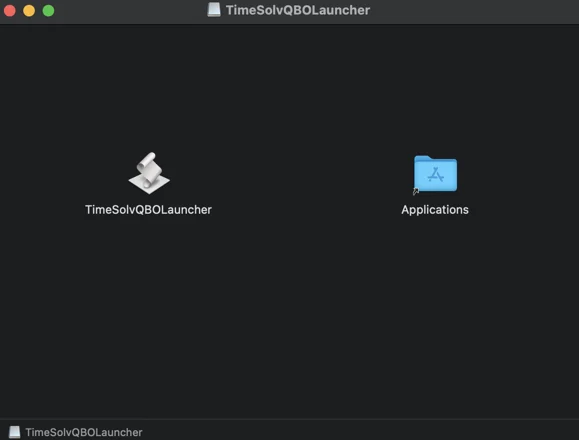
- Click on TimeSolvQBOLauncher from the Applications to launch TimeSolvQuickBooksSyncOnline app.
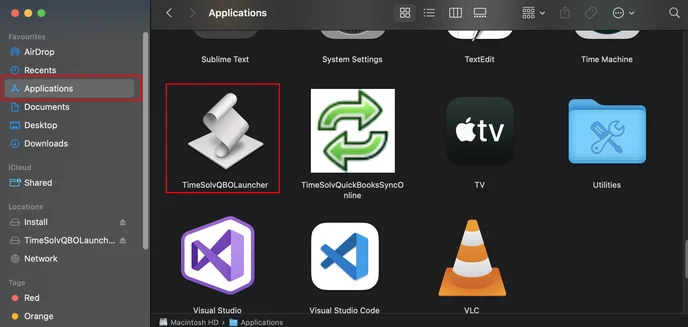
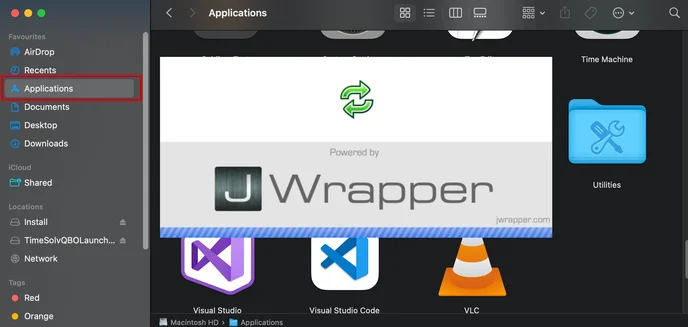
- This step successfully runs the TimeSolvQuickBooksSyncOnline app and you should now be able to sync TimeSolv with QuickBooks Online on macOS Ventura v13.0 using this workaround until a proper solution to the issue is provided.
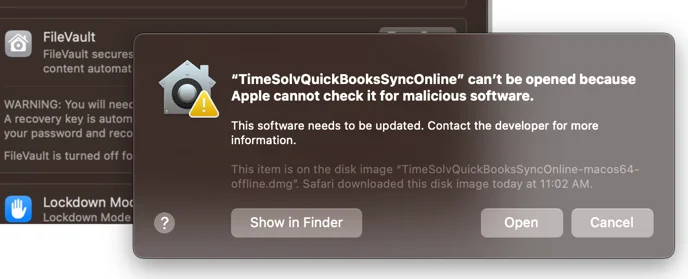
How to allow the TimeSolvQuickBooksSyncOnline App to run on macOS 13 when it gives the Privacy & Security prompt during installation?
If your macOS Ventura 13.0 is preventing you from installing the TimeSolvQuickBooksOnline App, follow the instructions below:
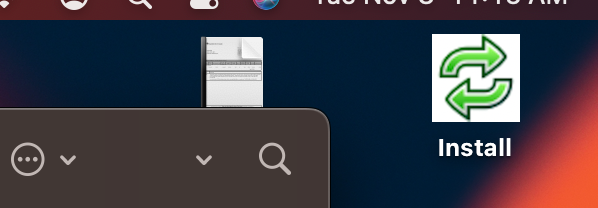
- Double-clicking on the downloaded file should bring up the “Install” icon on your macOS desktop.

- Head on to the location where the “TimeSolvQuickBooksSyncOnline-macos64-offline.dmg” file is downloaded.
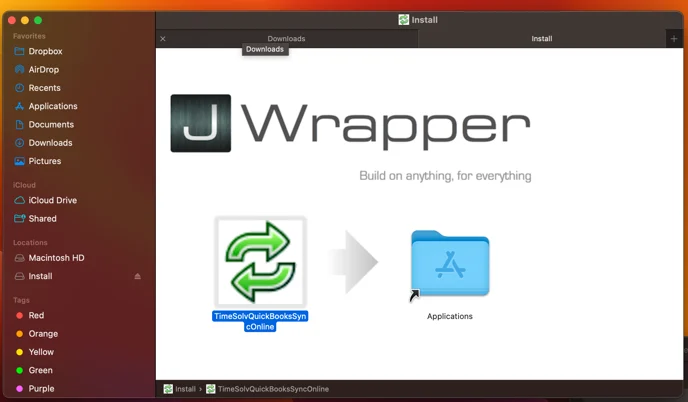
- A Finder window should appear as in the image below. Double-click on the “TimeSolvQuickBooksSyncOnline” icon instead of the drag-and-drop option.
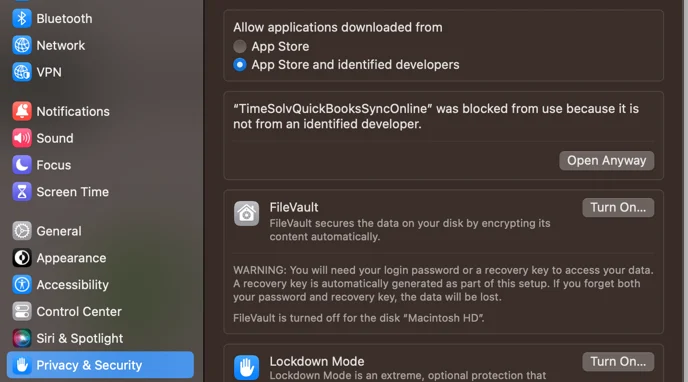
- A “Privacy & Security” screen is displayed. Make sure to select the “App Store and identified developers” button.
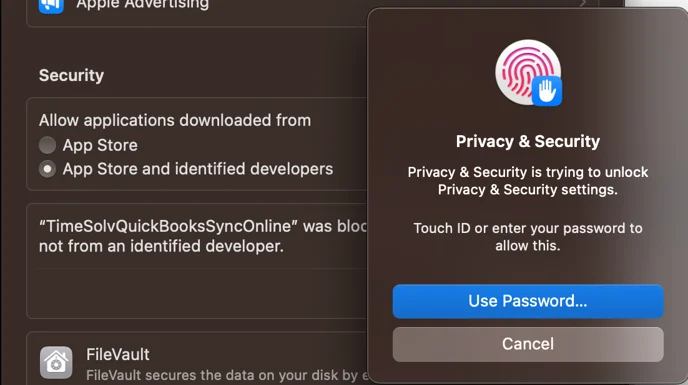
- If prompted with the following dialog, provide your password or use fingerprint authentication.
- If prompted with the following dialog, select “Open.”
- The JWrapper progress dialog should open, as shown below. Let the installation continue, and when prompted, provide the user/password.