Time & Expense Troubleshooting
Solutions to common time and expense issues in TimeSolv.
After using the TimeSync App, I am not able to see my Time Entries
To prevent data loss when using the TimeSync App, the following is highly recommended:
- The Sync process should be run BEFORE clearing any browser data, cookies, or caches because the TimeSync App’s data is lost during these operations.
- The Time Entries are synced as soon as possible and are not left unsynced for long periods of time.
Calendar Display Issues
If you cannot view your Time Entry screen calendar fully, it is likely an issue of the zoom level.
It depends on your hardware, but if your browser zoom level is over 100%, it will sacrifice the last day of the week.
If you are zoomed in too close or not to the full extent of the screen, you’ll lose the calendar completely.
How to Create Identical Task Codes Without Duplicate Error
There is a way for users to use two similar Task Codes without receiving the duplicate error message.
When creating a “New Task Code” under Time>Settings>Task Codes, you will see a field for “UTBMS Code“. Insert the duplicate code here.
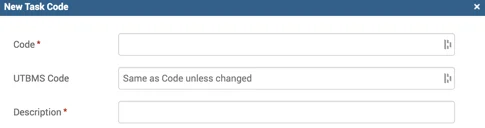
For example, enter “B100 – Administration” and then enter a description in the “Description” field to differentiate the two codes you have in there.
Note: In the first field, you would still have to enter a unique code, for example “B1261”.