QuickBooks Sync Tool
Download the free QuickBooks Sync tool from Account > Integrations, check supported versions and operating systems, and work through the checklist.
Overview
Millions use QuickBooks as a staple for their accounting and billing needs. QuickBooks has plenty of valuable accounting tools, so we have created a platform that seamlessly integrates with QuickBooks, allowing your firm to benefit from its accounting tools while utilizing TimeSolv’s efficient time tracking and billing systems.
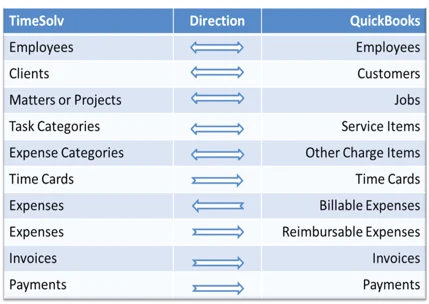
The TimeSolv QuickBooks Sync tool allows you to quickly and easily transfer data between your TimeSolv account and QuickBooks Desktop and Online.
Best of all – the TimeSolv QuickBooks Sync tool is free with your TimeSolv account and can be downloaded as a firm admin from the Account>Integrations>QuickBooks tab.
Click for more information and help articles on:
Supported Versions & Systems
QuickBooks Versions supported
QuickBooks 2007 Pro and newer
QuickBooks Basic is not supported
Operating Systems Supported
Windows 7 thru Windows 10
Mac OS X Yosemite or newer (QuickBooks Online only)
Linux
Note: Our QuickBooks Sync tool can run on a Windows server but it needs to be installed under a specific user. While the company file can be stored on a server, the sync tool needs to be installed on the same machine that the user is using to access QuickBooks.
QuickBooks Sync Tool Functionality Checklist
Users will need to make sure the following conditions are met for the TimeSolv QuickBooks Sync tool to work correctly:
1. Ensure the Intuit QuickBook application is running/logged in on the same machine as the TimeSolv QuickBooks Sync tool.
2. Open the Task Manager and make sure the highlighted two processes (pictured below) are running and not blocked by the machine/firewall:
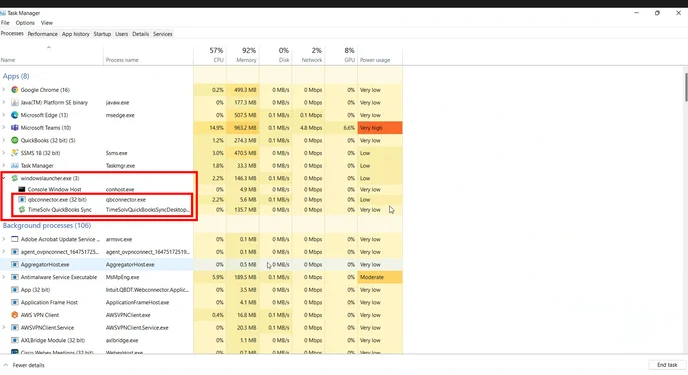
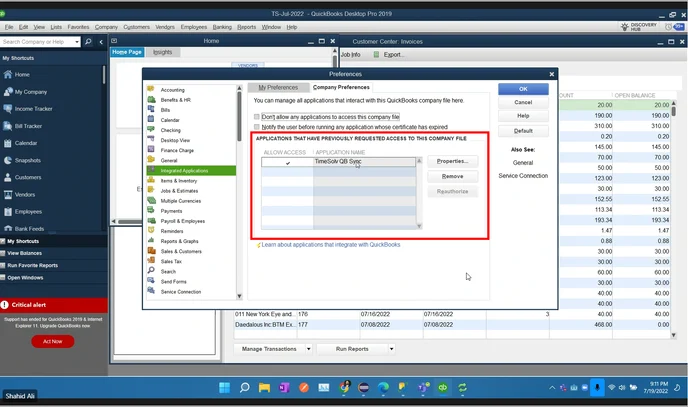
3. Check that the TimeSolv QuickBooks Sync app is allowed access to the Intuit QuickBooks application:
(a) Under Preferences>Integrated Applications>Company Preferences:
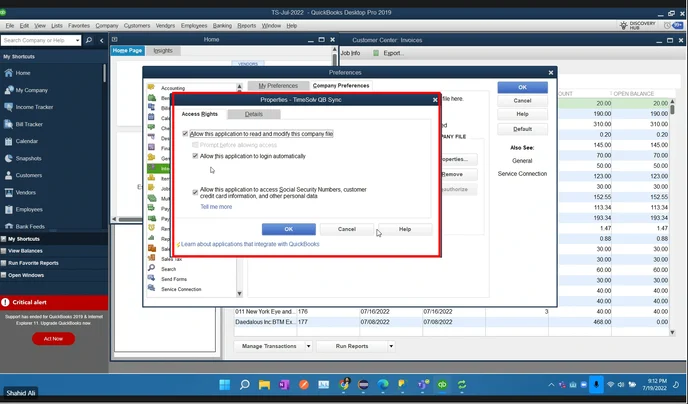
(b) And click the ‘Properties‘ button to verify it has the following permissions:
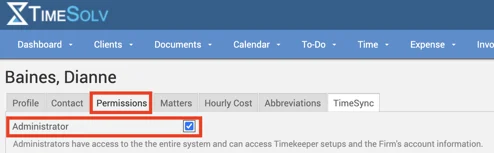
4. Ensure the user logging into the TimeSolv QuickBooks Sync application is an Admin user of the firm. This can be checked under Account>Timekeepers>[User]>Permissions tab:
Acceptable Characters in QuickBooks Online
Invalid characters in your QuickBooks Online company name, or in the name of one of your list items (such as Customers, Suppliers, Products and Services, or the Chart of Accounts), can lead to server errors or other problems in the application. To avoid or remedy these errors, make sure your company name in QuickBooks Online only contains accepted characters from this list.
Data Mapping Between TimeSolv and QuickBooks