Realization Per Invoice
See realization of hours, fees, and amounts per invoice, grouped by client, matter, or category, and filtered by invoice number and date range.
The Client label may be displayed as Client, Customer, or Respondent depending on your TimeSolv Configuration in Clients>Settings>General. This can change path and report terminology.
The Matter label may be displayed as Case, Engagement, Job, Matter, or Project depending on your TimeSolv Configuration in Clients>Settings>General. This can change path and report terminology.
Category and Sub Category may display differently depending on the labels specified under Clients>Settings>Categories.
The Invoice label may be displayed as Bill or Invoice depending on your TimeSolv Configuration in Invoices>Settings>General. This can change path and report terminology.
The Realization per Invoice Report lists Realization of hours, fees, and amount per invoice grouped by Client, Matter and Category.
To access the Report, select Reports>Realization>Realization per Invoice. The toggle button should be turned on in the last column; otherwise, the link will open the standard report.
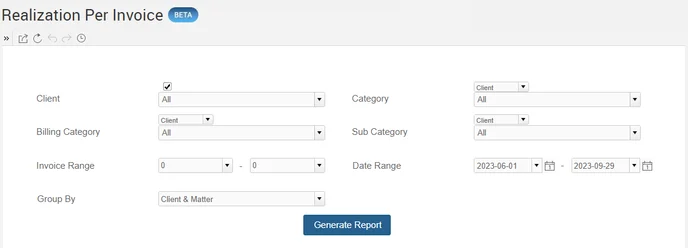
To generate your Report, select the appropriate parameters:
– Client: Select the ‘All’ option or choose from the list of available Clients. Enabling the “Include Inactive” checkbox includes inactive Clients.
– Category: This is the ‘Matter Category’ associated with the Timekeepers. To pull data based on categories, select a category or multiple categories or select the ‘All’ option. The report displays the data by Client or by Matter, depending on the Client/Matter selection.
– Sub-Category: If Sub-Categories have been created for the main Category, select from the list. The report displays the data by Client or by Matter, depending on the Client/Matter selection.
– Billing Category: Billing Categories, set up under Client & Matters, will show up here and the data on the report can be displayed by Client or by Matter, using the Client/Matter selector for this filter.
– Group By: The data can be grouped on the basis of the following groupings:
– Client & Matter
– Client
– Category & Client & Matter
– Invoice Range: Allows the user to view the Report based on the range of Invoice numbers.
– Date Range: Allows the user to view the Report based on the selected data range.
– From Date/ To Date: Using the Calendar, select ‘From’ and ‘To’ to include the date range for the Report.
The template within the Calendar allows users to set the desired date as the Default date. For example, for the ‘From’ date, you can set the Report to start from the ‘First day of the 1st quarter of this year.’ With this selection set as default, the Report’s start date will be 01/01/(year) each time the Report is run.
A default ‘To’ date can be set up in a similar way.
Sample Report with default values: