Revenue
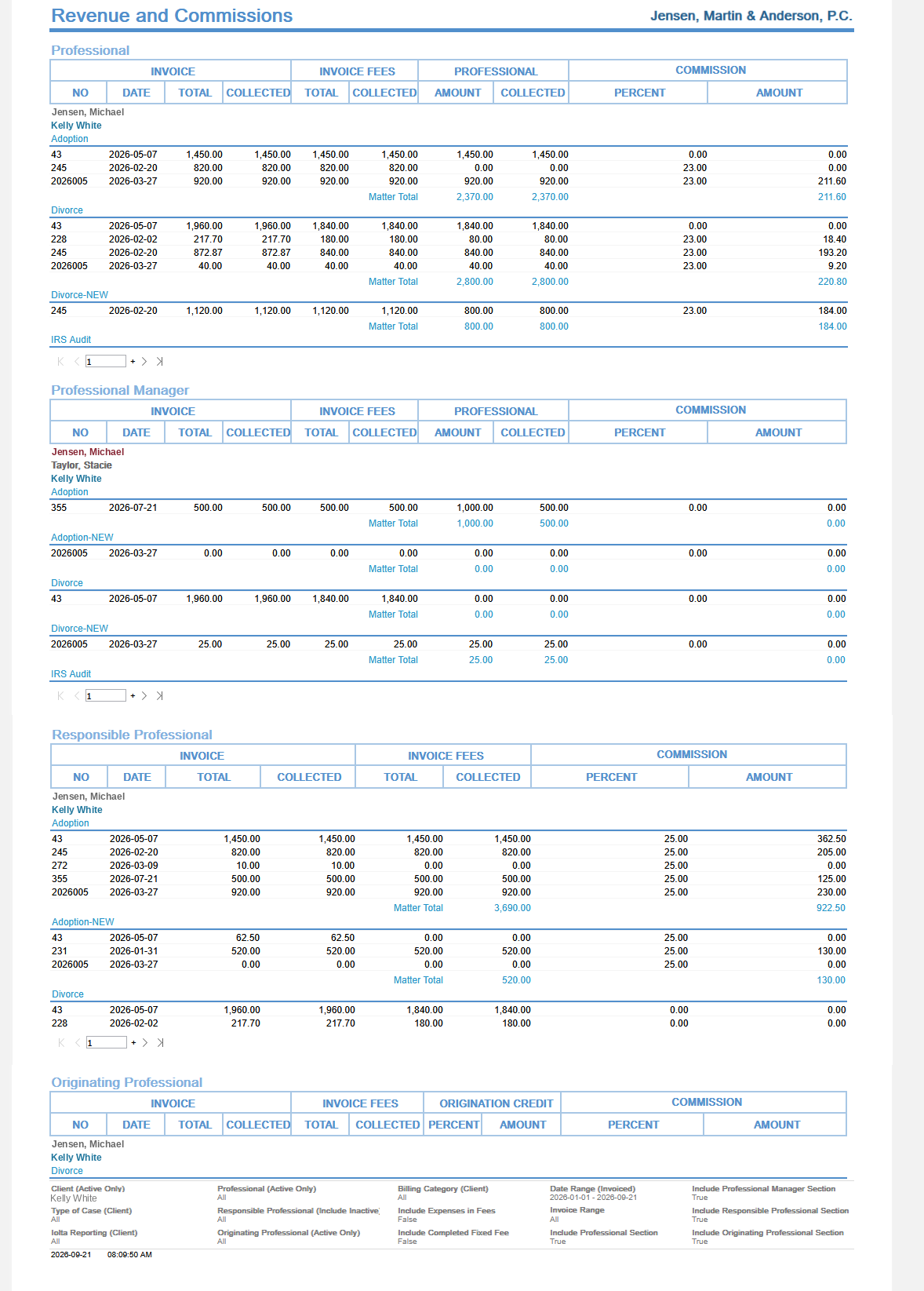
View invoice fees, professional totals, collected amounts, and commission percents and amounts, filtered by professional, invoice range, and date type.
The Client label may be displayed as Client, Customer, or Respondent depending on your TimeSolv Configuration in Clients>Settings>General. This can change path and report terminology.
The Matter label may be displayed as Case, Engagement, Job, Matter, or Project depending on your TimeSolv Configuration in Clients>Settings>General. This can change path and report terminology.
The Professional label may be displayed as Associate, Consultant, Employee, Fee Earner, Professional, Resource, Staff Member, and Timekeeper depending on your TimeSolv Configuration in Account>Settings>General. This can change path and report terminology.
Category and Sub Category may display differently depending on the labels specified under Clients>Settings>Categories.
The Invoice label may be displayed as Bill or Invoice depending on your TimeSolv Configuration in Invoices>Settings>General. This can change path and report terminology.
View invoice, invoice fees, and professional totals and collected amounts, as well as commission percents and amounts.
To access the Report, select Reports>Performance>Revenue.
The toggle button should be turned on in the last column; otherwise, the link will open the standard report.
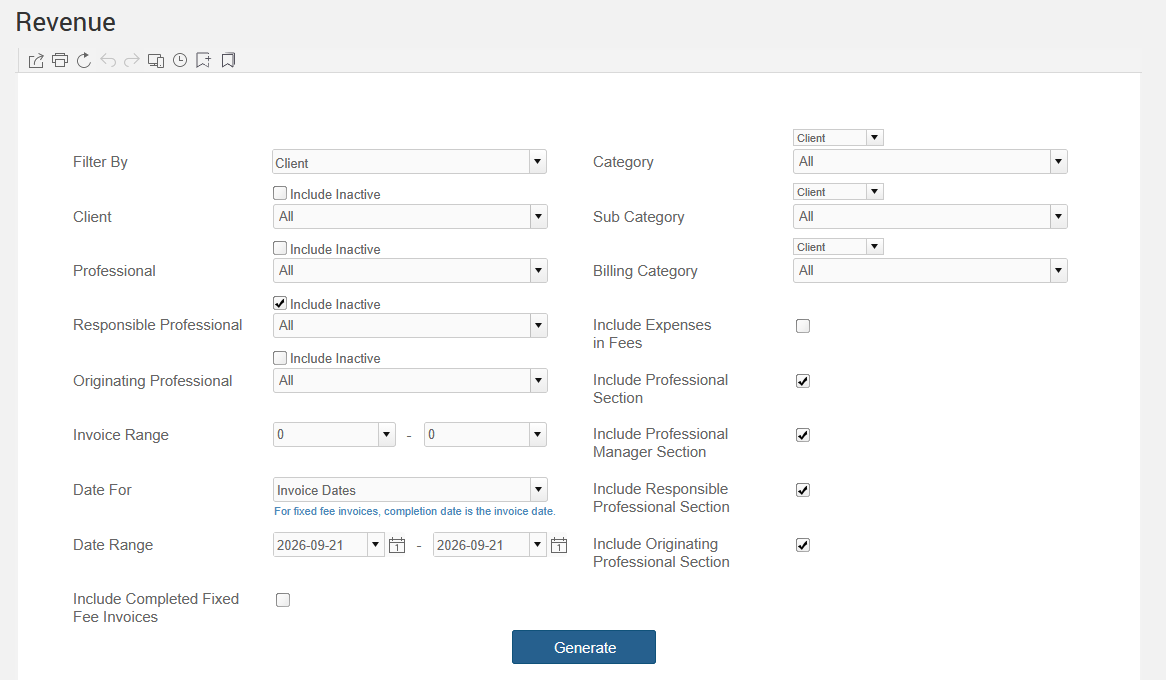
To generate the report, select the appropriate parameters:
- Filter By: Select Client or Matter.
– Client: Select the ‘All’ option or choose from the list of available Client. Enabling the “Include Inactive” checkbox includes inactive Clients. To learn more, click here on Timekeeper Matters.
- Professional: Select single or multiple professionals. Optionally Include Inactive responsible professionals.
- Responsible Professional: Select single or multiple professionals. Optionally Include Inactive responsible professionals.
- Originating Professional: Select single or multiple professionals. Optionally Include Inactive responsible professionals.
- Invoice Range: Select a range of invoices to be shown.
- Date For: Select Invoice Dates, Payment Dates, or Payment Allocation Dates.
– Date Range: Allows the user to view the Report based on the selected data range.
- Include Completed Fixed Fee: For information on this setting, see The Reports FAQs article.
- Category: Select Client or Matter from the respective dropdown just above the field to display the data grouped by the relevant category. To filter data based on categories, select a category, multiple categories, or select the ‘All’ option.
- Sub Category: Select Client or Matter from the respective dropdown just above the field to display the data grouped by the relevant category. If Sub-Categories have been created for the main Category, select from the list.
- Billing Category: Select Client or Matter from the respective dropdown just above the field to display the data grouped by the relevant category. Billing Categories, set up under Client & Matters, will show up here and the data on the report can be displayed by Client or by Matter, using the Client/Matter selector for this filter.
Optionally select the following check boxes to include additional information:
- Include Expenses in Fees
- Include Professional Section
- Include Professional Manager Section
- Include Responsible Professional Section
- Include Originating Professional Section
Sample Report: