Tax Listing
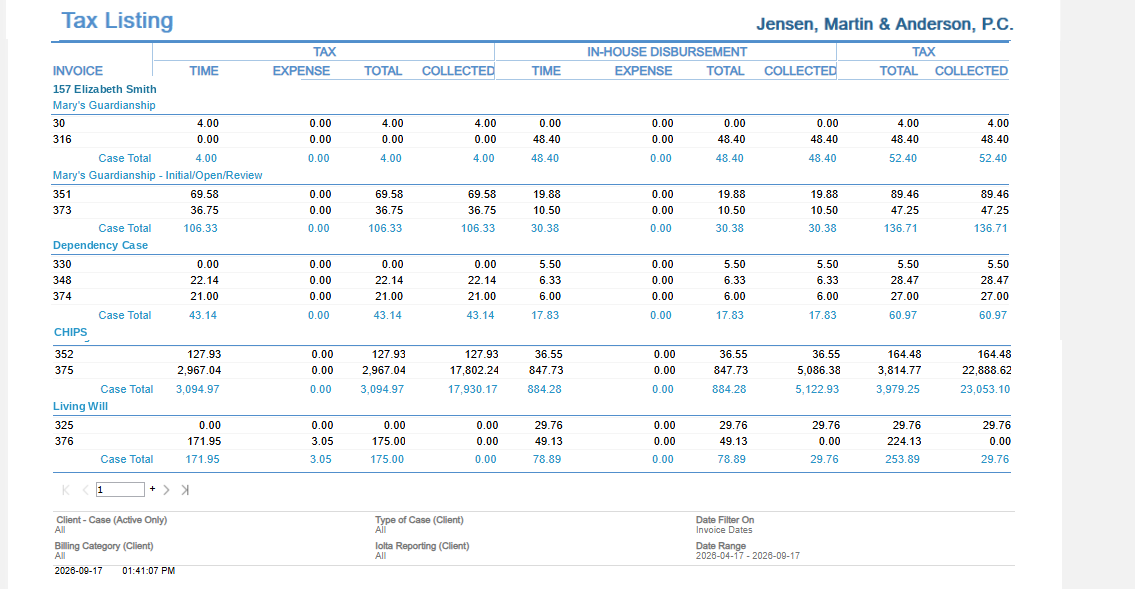
Run the Tax Listing report by client-matter, filtered by billing category, category, and sub-category, over a range of invoice or payment allocation dates.
The Client label may be displayed as Client, Customer, or Respondent depending on your TimeSolv Configuration in Clients>Settings>General. This can change path and report terminology.
The Matter label may be displayed as Case, Engagement, Job, Matter, or Project depending on your TimeSolv Configuration in Clients>Settings>General. This can change path and report terminology.
Category and Sub Category may display differently depending on the labels specified under Clients>Settings>Categories.
Generate a list of the tax amounts on your clients' and matters' invoices. Filter the report by client-matter, billing category, category, and sub-category, and choose whether the date range applies to invoice dates or payment allocation dates.
To access the Report, select Reports>Managing the Firm>Tax Listing.
The toggle button should be turned on in the last column; otherwise, the link will open the standard report.
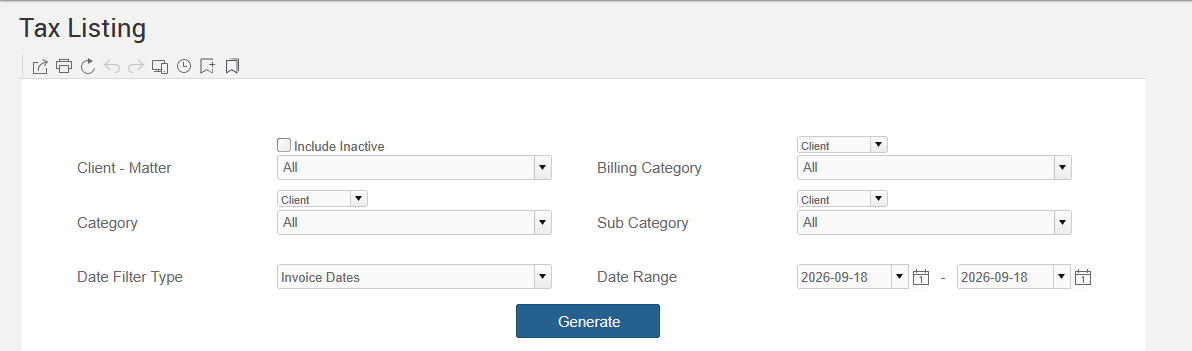
To generate the report, select the appropriate parameters:
- Client - Matter: Select single or multiple client matters. You can also use the ‘All’ to bring up the data for all the Firm’s client matters. Optionally Include Inactive clients.
- Billing Category: Select Client or Matter from the respective dropdown just above the field to display the data grouped by the relevant category. Billing Categories, set up under Client & Matters, will show up here and the data on the report can be displayed by Client or by Matter, using the Client/Matter selector for this filter.
- Category: Select Client or Matter from the respective dropdown just above the field to display the data grouped by the relevant category. To filter data based on categories, select a category, multiple categories, or select the ‘All’ option.
- Sub Category: Select Client or Matter from the respective dropdown just above the field to display the data grouped by the relevant category. If Sub-Categories have been created for the main Category, select from the list.
- Date Filter Type: Select Invoice Dates or Payment Allocation Dates.
– Date Range: Allows the user to view the Report based on the selected data range.