Resource Allocation
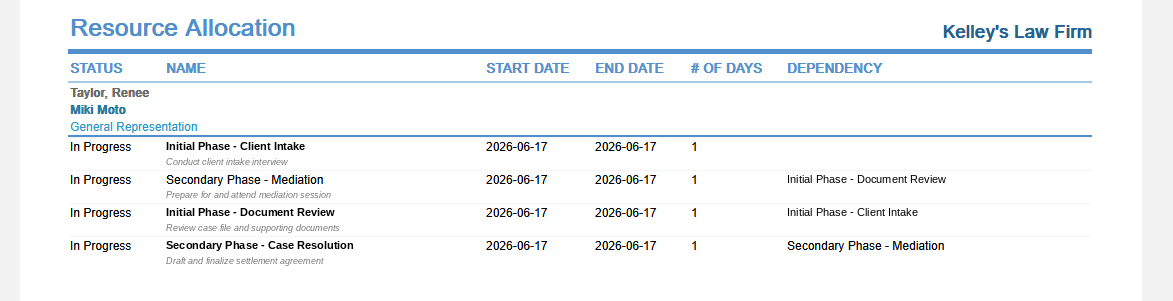
View the status, dates, duration, and dependencies of matter plan tasks assigned to resources, filtered by professional, client-matter, and category.
The Professional label may be displayed as Associate, Consultant, Employee, Fee Earner, Professional, Resource, Staff Member, and Timekeeper depending on your TimeSolv Configuration in Account>Settings>General. This can change path and report terminology.
The Client label may be displayed as Client, Customer, or Respondent depending on your TimeSolv Configuration in Clients>Settings>General. This can change path and report terminology.
The Matter label may be displayed as Case, Engagement, Job, Matter, or Project depending on your TimeSolv Configuration in Clients>Settings>General. This can change path and report terminology.
Category and Sub Category may display differently depending on the labels specified under Clients>Settings>Categories.
View matter the status, name, start date, end date, number of days, and dependency of matter plan tasks.
To access the Report, select Reports>Managing Matters>Resource Allocation.
The toggle button should be turned on in the last column; otherwise, the link will open the standard report.
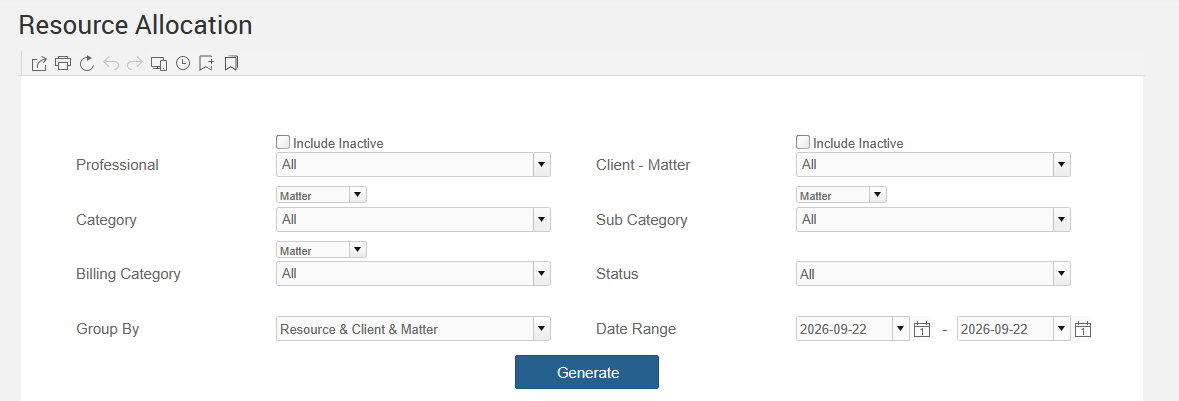
To generate the report, select the appropriate parameters:
- Professional: Select single or multiple professionals. Optionally Include Inactive responsible professionals.
– Client-Matter: Select the ‘All’ option or choose from the list of available Client-Matters. Enabling the “Include Inactive” check box includes inactive Clients and Matters. To learn more, click here on Timekeeper Matters.
- Category: Select Client or Matter from the respective dropdown just above the field to display the data grouped by the relevant category. To filter data based on categories, select a category, multiple categories, or select the ‘All’ option.
- Sub Category: Select Client or Matter from the respective dropdown just above the field to display the data grouped by the relevant category. If Sub-Categories have been created for the main Category, select from the list.
- Billing Category: Select Client or Matter from the respective dropdown just above the field to display the data grouped by the relevant category. Billing Categories, set up under Client & Matters, will show up here and the data on the report can be displayed by Client or by Matter, using the Client/Matter selector for this filter.
- Status: Select All, In Progress, or Completed.
- Group By: The data can be grouped by Resource & Client & Matter or Client & Matter & Resource.
– Date Range: Allows the user to view the Report based on the selected data range.
Sample Report: