Invoices and WIP Aging Report
See unpaid invoices plus work in progress to find the total a client owes, exclude non-billable or no-charge items, and show the last payment and date.
The Client label may be displayed as Client, Customer, or Respondent depending on your TimeSolv Configuration in Clients>Settings>General. This can change path and report terminology.
Category and Sub Category may display differently depending on the labels specified under Clients>Settings>Categories.
The Professional label may be displayed as Associate, Consultant, Employee, Fee Earner, Professional, Resource, Staff Member, and Timekeeper depending on your TimeSolv Configuration in Account>Settings>General. This can change path and report terminology.
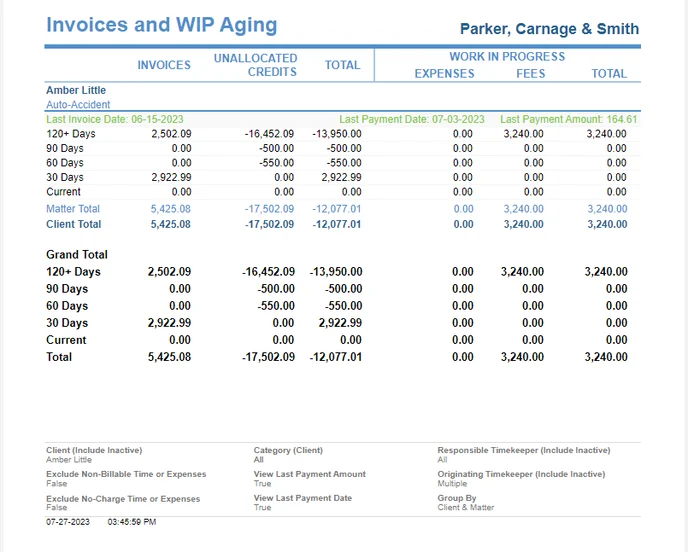
The Invoices and WIP Aging Report shows the total of unpaid Invoices and work in progress, used to determine the total amount owed by a Client.
Time Entries put on ‘Hold’ again become part of the WIP. Users can then generate the Aging Report to view unbilled entries.
To access the Report, from the main menu, select Reports>Invoices, Payments and Trusts>Invoices and WIP Aging. The toggle button should be turned on in the last column; otherwise, the link will open the standard report.
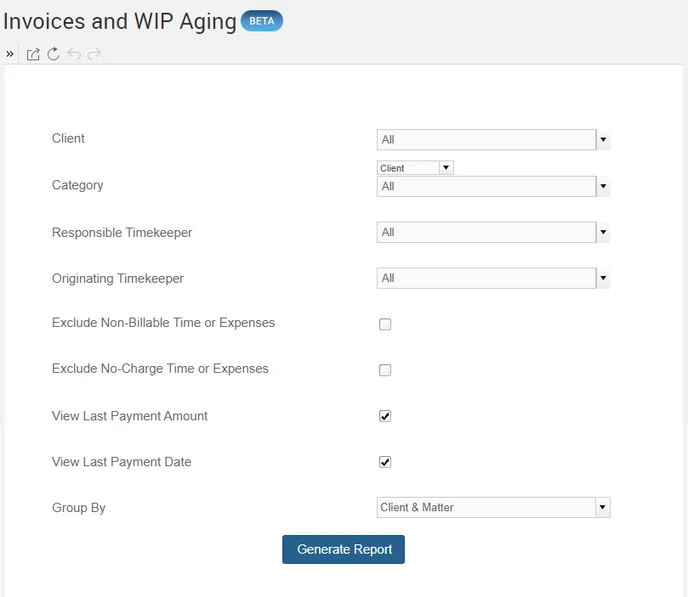
The Report can be filtered on the following parameters:
– Client: Select single or multiple clients From the pop-up dialog. You can also use the ‘All’ to bring up the data for all the Firm’s clients.
– Category: Select Client or Matter from the respective dropdown just above the fields to display the data grouped by the relevant category. Select the appropriate value from the Client/Matter selector to group data by Client or by Matter.
– Responsible Timekeeper: The Responsible Timekeeper field is helpful for Timekeeper Commissions. If an Originating Timekeeper is assigned to a Matter, commissions can be distributed based on the commission percentage set up against the Originator. Enabling the “Include Inactive” checkbox includes inactive Responsible Timekeepers.
– Originating Timekeeper: TimeSolv allows users to add as many Originating Timekeepers as needed against a matter so that commissions can be distributed accordingly. To learn more about Originating Timekeepers, click here on Matter Originators.
– Exclude Non-Billable Time or Expenses: Use the checkbox to exclude Non-Billable Time or Expenses.
– Exclude No-Charge Time or Expenses: Use the checkbox to exclude the “No-Charge” type Time or Expenses.
– View Last Payment Amount: Use the checkbox to display the last Payment Amount received.
– View Last Payment Date: Use the checkbox to display the date on which the last Payment Date was received.
– Group By allows various ways users can Group the Report:
– Client & Matter
– Originating Timekeeper & Client & Matter
– Responsible Timekeeper & Client & Matter
Sample Report with default values: