TimeSolvPay Deposits and Reconciliation
Review TimeSolvPay deposit reports, payment details, and daily fees, and reconcile deposits with payments. For signups before Sept. 24, 2026.
TimeSolvPay Deposit Reports
Viewing Payment Details in Deposit Reports
Within TimeSolvPay, you can review payment details for each transaction included in your deposit. With this feature, you can better track your transactions and deposits. This is especially useful for reconciling payments with your accounting software.
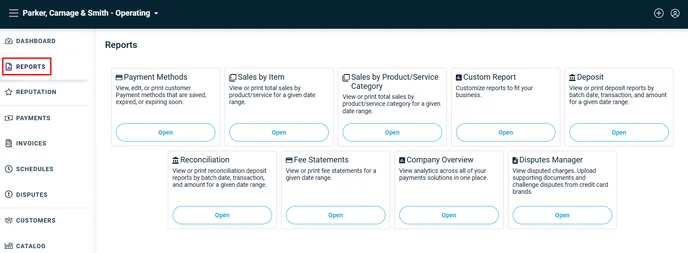
To access the Reports, log in to TimeSolv and navigate to TimeSolvPay>Settings>TimeSolvPay Portal. This will open the TimeSolvPay portal in a new tab. Select “Reports” from the navigation on the left.
Note:
Fee statements are available on the 8th of the following month, while fee deductions are made from the Operating Account on the 5th of the following month.
If no transactions are processed during a 90-day period, an inactivity fee gets applied.
The fee is charged per Firm (not per Account). If you have a Trust and an Operating Account, it will be considered as one (1) fee. The fee gets waived if you process a payment in either account within 90 days.
Note: To cancel an Account, you must email support@timesolvpay.com or schedule a call/Zoom meeting with Customer Support. The email request must include an effective date of cancellation.
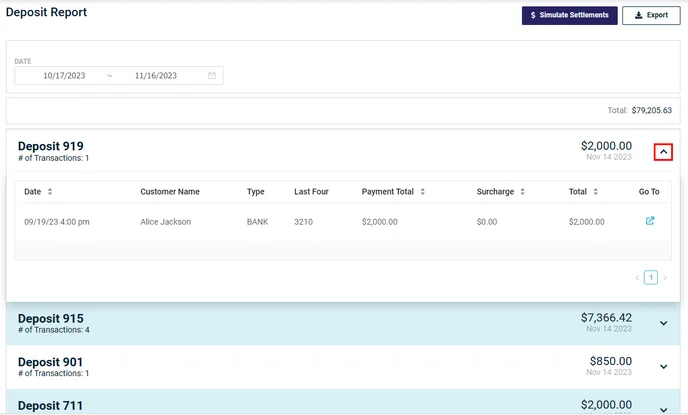
To view payment details:
- Open your Deposit Report
- Click the icon under the right-hand column of the transaction
- You will be able to view the payment details associated with the deposit
Viewing Daily Fees in Deposit Reports
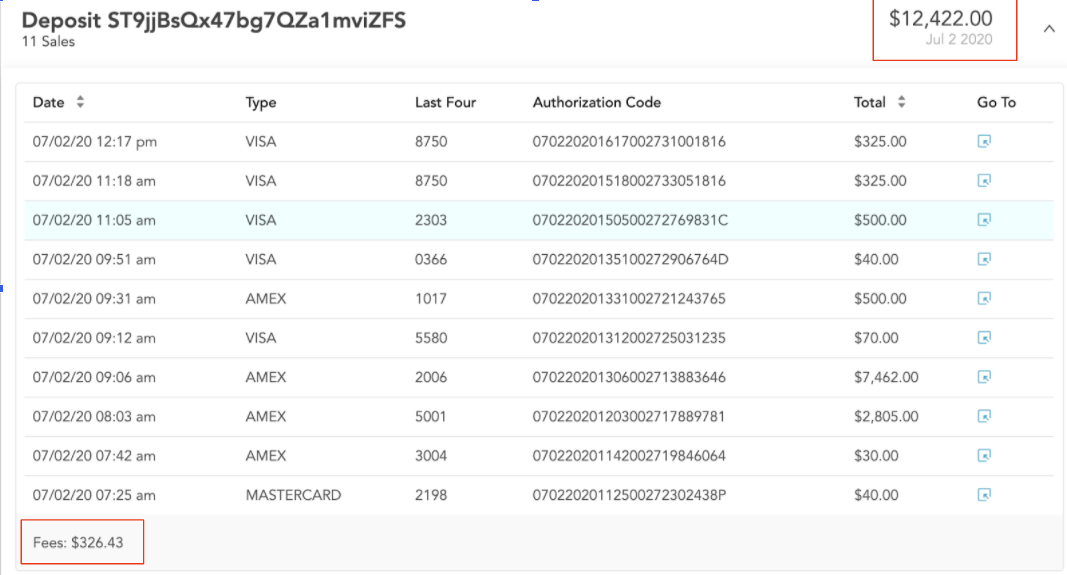
To view daily fees:
- Open your deposit report
- Click the icon under the right-hand column of the transaction
- You will be able to view the payment details associated with the deposit
- Fees will be totaled in the bottom left-hand corner.
TimeSolvPay Reconciliation Overview
We understand the importance of ensuring your business can reconcile against your bookkeeping software. TimeSolvPay includes all of the transactional reports necessary to run your business confidently.
Reminder: Reconcile your transactions and deposits daily or as often as you accept payments in a given week or month. This way, if there are any discrepancies, they can be identified and corrected immediately.
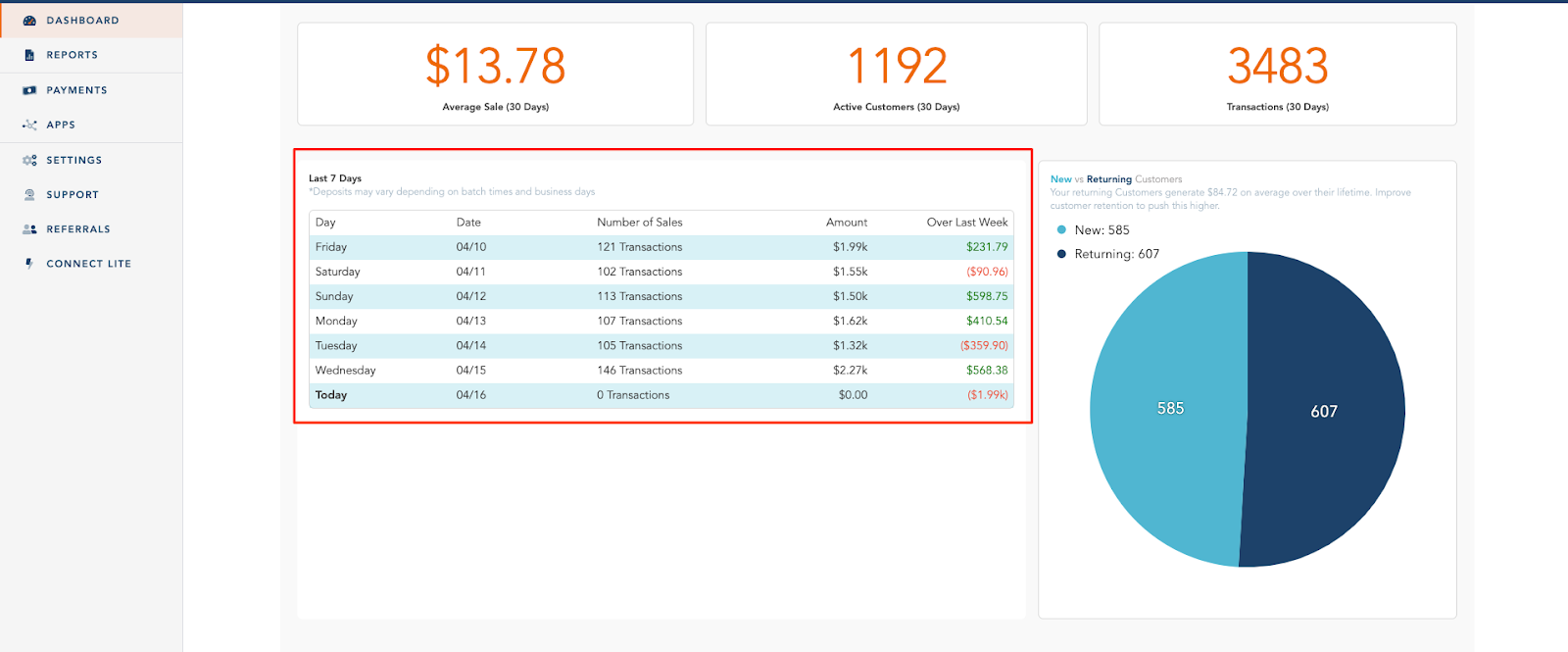
TimeSolvPay Dashboard: A Quick View of Your Deposits over the Last 7 Days
The TimeSolvPay dashboard provides a quick overview of your deposits in the last seven days. You can click on a specific day to be taken to the payments list. Once you are on the payments list, you can see every transaction included in the deposit.
To Access Your Past Batch and Deposit Reports:
- Log in to TimeSolvPay
- Select Reports from the main toolbar
- Select Deposit Report
- Select the date range for the batch you would like to review
- Click into the batch to see the transactions that are included in the batch
How to Match Your Deposit Report with Your Payments List for Daily Reconciliation
When reconciling your transactions, you should review two key places in the TimeSolvPay platform.
Payments List: The payments list includes all transactions processed within a given date range. The total net amount that is listed when looking at a specific date range in the payments list should match that of the batch amounts listed in the Deposit Report.
Deposit Report: The deposit report is the total amount deposited into your bank account for a given date range, separated by batch. If you have multiple batches in a day, the total amount of each batch listed in the deposit report should match the total number stated in your payments list.
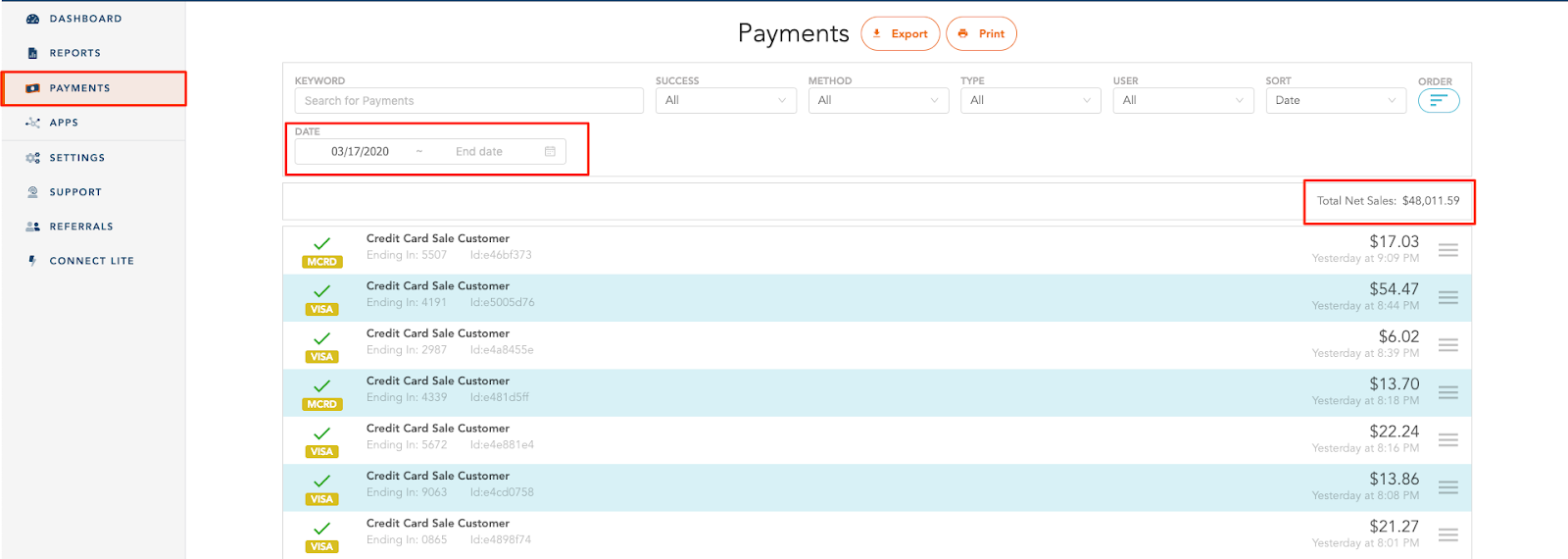
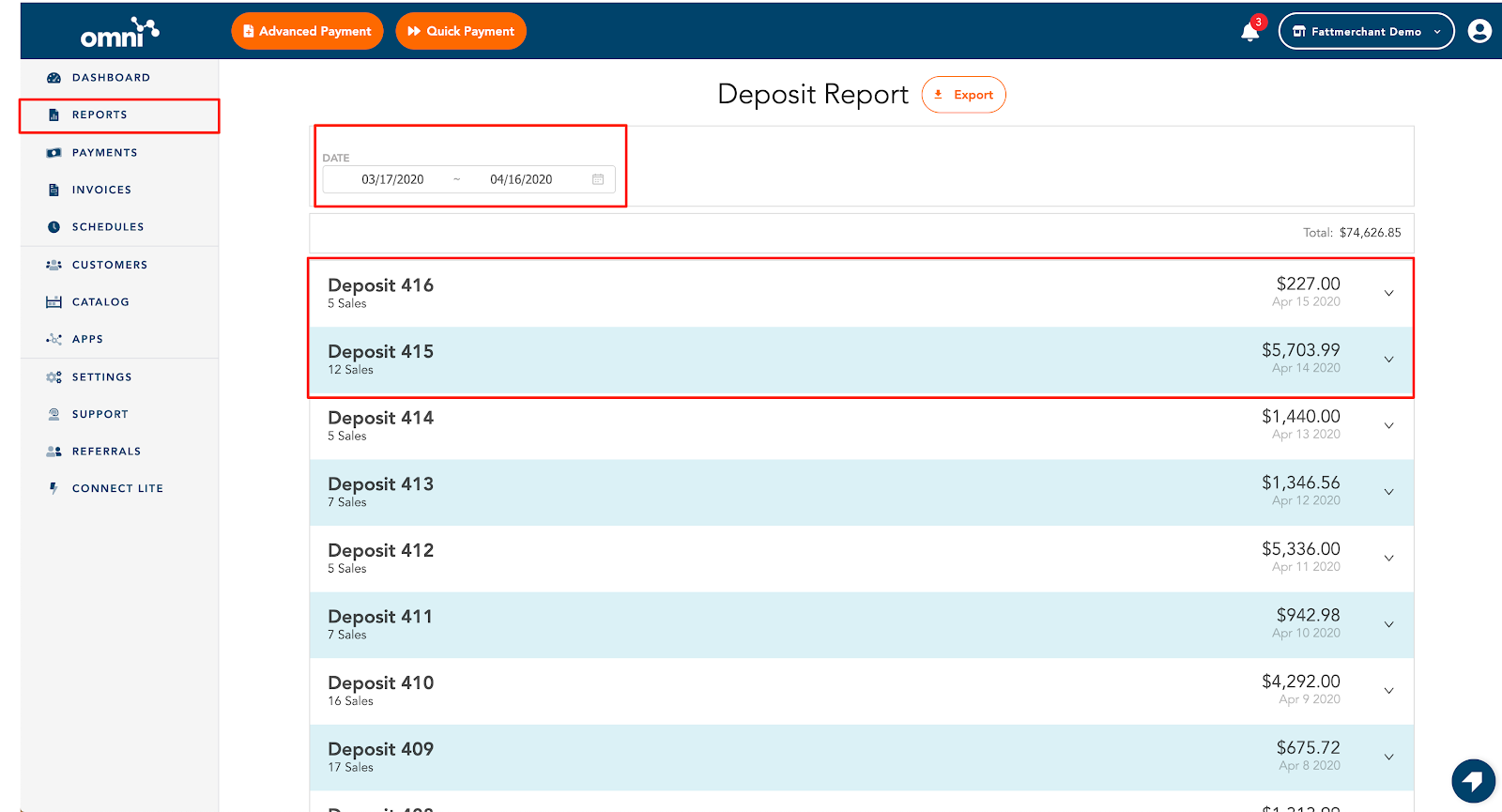
There may be times that your deposit report includes batches from previous days (see the example above). The reason is that the batch may have been reported after the cut-off time for that day, so the batch was reported in the TimeSolvPay deposit report the next day.
When reviewing your deposit report for a specific date range, it is important to look only at the batches listed for your date range. This is especially important if you have multiple batches in a day.
When looking at the example above, the total net sales listed in the payments list is $1,169.16. The total amount listed in the deposit report is $3,235.16 because there are batches from the prior day listed due to being submitted after the cut-off time. When looking at the two deposits with the correct date range listed, you will see that their total matches the net amount stated in the payments list ($1,169.16).
If There Is a Discrepancy:
Suppose the deposit amount does not match what you have reported in receipts for the day or what you have reported in your payments list. In that case, you can use the deposit report to identify the transaction(s) causing the discrepancy.
The most common discrepancies are:
- A transaction is missing from the batch
- A transaction is included multiple times in the batch
To find the transaction that is causing the discrepancy:
Determine the amount of the difference between the reported deposit and the total net amount of payments you have recorded.
- Look through your payments list to see if there was a transaction for that amount.
- Cross-reference with the transactions listed in your deposit report
If you find a discrepancy, please contact our support team for assistance immediately.
For expedited assistance, when speaking to a support representative regarding a discrepancy, please include the missing transaction or counted multiple times in your batch. This way, the support team can immediately identify and correct the issue. The time for resolution may be delayed if the support team has to reconcile the batch to identify the transaction(s) in question.
Email Notifications
| Description | Source | TimeSolv Email to Admin | TimeSolv Email to Client | Stax Email to Client |
| Payment on File | Virtual Terminal | No | No | Yes |
| Payment: Manual | Website Payment | No | No | Yes |
| Client Portal Payment on File | Virtual Terminal | Yes | No | Yes |
| Client Portal Payment Manual | Website Payment | Yes | No | Yes |
| Website Payment: Guest | Website Payment | Yes | No | Yes |
| Website Payment: Bank Account-on-file | Virtual Terminal | Yes | No | Yes |
| Website Payment: Bank Account-manual | Website Payment | Yes | No | Yes |
| Recurring Payments | Virtual Terminal | Yes | No | No |
| Refunds, Manual | Website Payments | No | No | No |
| Refunds on File | Virtual Terminal | No | No | No |
| Trust Deposits | Website Payment | No | No | Yes |
| Client Portal Creation | No | Yes | No | |
| Access your account | No | Yes | No |
Emails on Failed Transactions
| Description | Source | TimeSolv Email to Admin | TimeSolv Email to Client | Stax Email to Client |
| Payment on File | Virtual Terminal | No | No | No |
| Payment: Manual | Website Payment | No | No | No |
| Client Portal: Payment on File | Virtual Terminal | No | No | No |
| Client Portal: Payment Manual | Website Payment | No | No | No |
| Website Payment: Guest | Website Payments | No | No | No |
| Website Payment: Bank Account-on-file | Virtual Terminal | No | No | No |
| Website Payment: Bank Account-manual | Website Payments | No | No | No |
| Recurring Payment | Virtual Terminal | Yes | No | No |
| Refunds Manual | Website Payments | No | No | No |
| Refunds on File | Virtual Terminal | No | No | No |