Payments FAQ & Troubleshooting
Frequently asked questions and troubleshooting for payments in TimeSolv.
The Expense label may be displayed as Cost, Disbursement, or Expense depending on your TimeSolv Configuration in Expense>Settings>General. This can change path and report terminology.
The Client label may be displayed as Client, Customer, or Respondent depending on your TimeSolv Configuration in Clients>Settings>General. This can change path and report terminology.
The Matter label may be displayed as Case, Engagement, Job, Matter, or Project depending on your TimeSolv Configuration in Clients>Settings>General. This can change path and report terminology.
What Payment Methods are Accepted byTimeSolvPay?
TimeSolvPay accepts credit cards, ACH transactions, Google Pay, Apple Pay, Link, and buy now pay later financing.
How to Handle a Client Bounced Check
TimeSolv suggests you handle a bounced check by creating an Expense and attaching the bounced check as an attachment under our ‘Receipt’ upload feature.
Click under Expense>Expense Entry.
Specify all the relevant Client details on the screen.
Specify a ‘Fixed Amount‘, which will be the amount that was on the bounced check.
Click on ‘Choose File‘ against the ‘Receipt‘ field and upload the bounced check here.
After saving, bill out the Expense to the Client.
When I Click the Link to Pay Retainer Invoice it Says ‘Nothing to Show’
If you get a ‘Nothing to Show’ message when trying to click on the link provided to pay a Retainer invoice, follow the steps below to resolve:
- You should have a bank account set up under Payments>Settings>Bank Accounts tab. Ensure your Trust account is integrated as well.
- Ensure the Client is set up properly for Client Portal access.
- Under Clients>Setttings, make sure you have something selected under ‘Receive All Portal Invoice Payments In.’
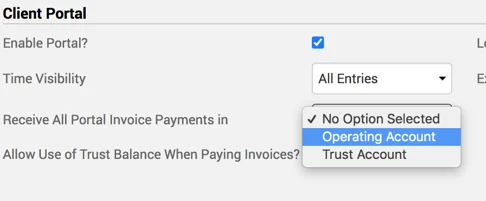
-
At the Client-level (Clients>Clients & Matters>[Client Name]>General>’Receive All Portal Payments In’) is set up so the money has a place to be deposited.
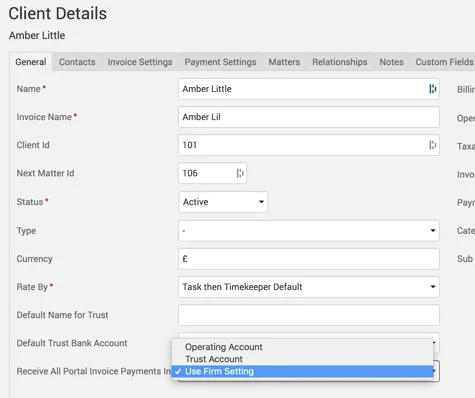
-
At the Matter-level (Clients>Clients & Matters>[Matter name]>General>’Receive All Portal Payments In’) is set up so the money has a place to be deposited
Remember that Retainer Invoices do not show on the Accounts Receivable or ledgers, so there’s no harm in regenerating them.
There currently isn’t a way to resend, edit, or delete old Retainers.
Unable to Void a Payment. Getting a ‘Remove All References Error’
If you have interest enabled, you cannot void a payment against an invoice if you created another invoice after the payment. Invoices created after the paid invoice must be deleted in order to void the payment.