Invoicing FAQ
Frequently asked questions about invoicing in TimeSolv.
The Invoice label may be displayed as Bill or Invoice depending on your TimeSolv Configuration in Invoices>Settings>General. This can change path and report terminology.
The Client label may be displayed as Client, Customer, or Respondent depending on your TimeSolv Configuration in Clients>Settings>General. This can change path and report terminology.
The Matter label may be displayed as Case, Engagement, Job, Matter, or Project depending on your TimeSolv Configuration in Clients>Settings>General. This can change path and report terminology.
How do I Display Total Hours in Time Detail Section?
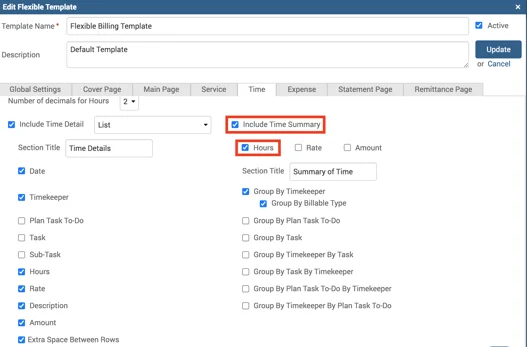
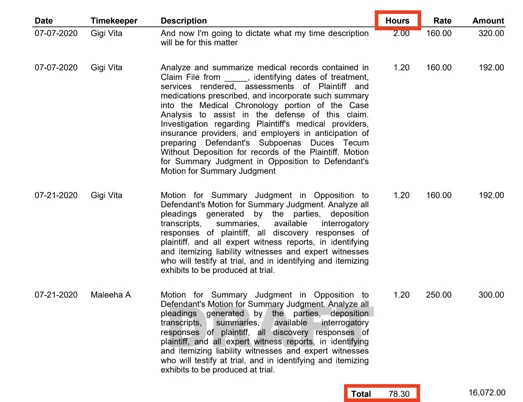
Surface Total Hours in an invoice Time Detail section by enabling Include Time Summary and Hours on the Time tab of the Flexible Template.
If you would like to see the Total Hours billed within the Time Detail section of an invoice, head under Invoice>Settings>Flexible Templates.
Open the Flexible Template you’ll be using for the relevant Client-Matter, and click on the Time tab. Ensure ‘Include Time Summary‘ and ‘Hours‘ checkboxes are enabled.
What is Contingency Fee Billing and How is it Handled in TimeSolv?
Contingency matters in TimeSolv — set the Billing Arrangement to Time and Expense, then use Hold Billing until the case settles and you are ready to bill.
Matters are usually set as a contingency when the law firm does not bill time at a set rate, but instead, charges the Client an agreed amount upon completion of the case.
To set up a contingency Matter in TimeSolv:
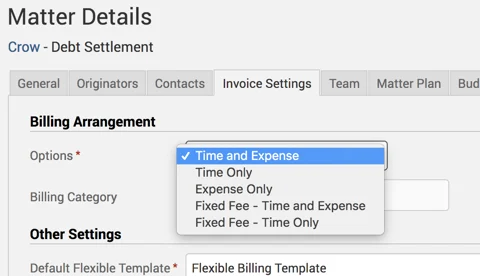
Click on Clients>Clients & Matters>[Matter name]>Invoice Settings.
Under ‘Billing Arrangement‘ options, choose the arrangement as ‘Time and Expense‘.
Next, you need to put the Matter on ‘Hold Billing’ until you are ready to bill the contingent Matter.
To ‘Hold Billing’, click on the Matter details general tab and enable ‘Hold Billing’ checkbox.
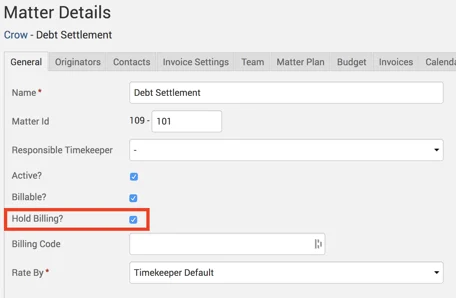
Disable it from this same screen when you are ready to bill the contingent Matter.
What is the Auto Mail Feature and What Does it do?
Automail is if you want TimeSolv to physically mail your invoices out for you.
We employ a third-party service that does the folding, inserting, stamping, and mailing at $1.49 per invoice. We’ll mail up to five pages for you, saving you the time and effort. You may find that it’s more cost-effective to use our AutoMail service than one of your attorneys or paralegals spending their valuable time with mindless and non-billable work like this.
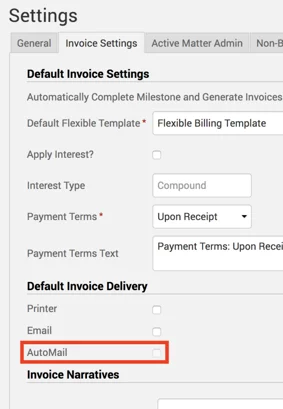
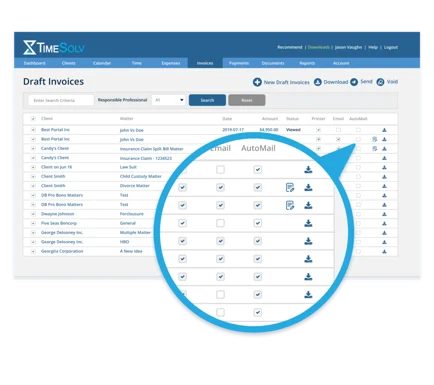
You can also turn on AutoMail at the draft invoice screen too. To do this, head under Invoices>Drafts screen. After creating your draft invoice, select the Automail checkbox.