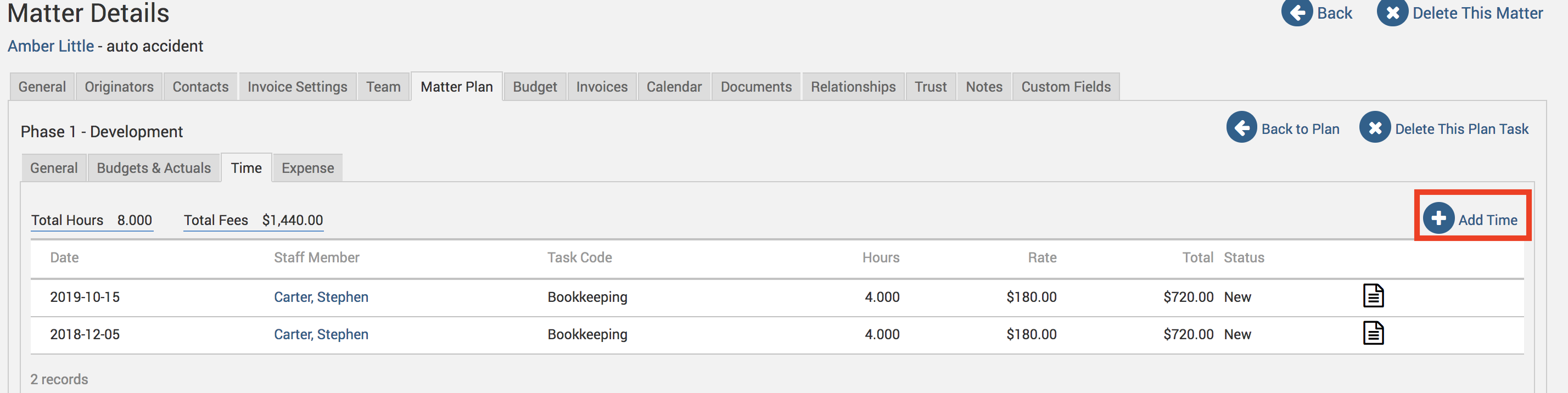
Add Time & Expense to Matter Plan Tasks
Record time and expense entries against matter plan tasks from the Plan Task To-Do link on the entry screens or a plan task's Time/Expense tab.
The Plan Task To-Do label may be displayed as Action Item, Plan Activity, Item, or Plan Task depending on your TimeSolv Configuration in To Do>Settings>General. This can change path and report terminology.
The Expense label may be displayed as Cost, Disbursement, or Expense depending on your TimeSolv Configuration in Expense>Settings>General. This can change path and report terminology.
The Professional label may be displayed as Associate, Consultant, Employee, Fee Earner, Professional, Resource, Staff Member, and Timekeeper depending on your TimeSolv Configuration in Account>Settings>General. This can change path and report terminology.
Add Time from Time Entry Screen
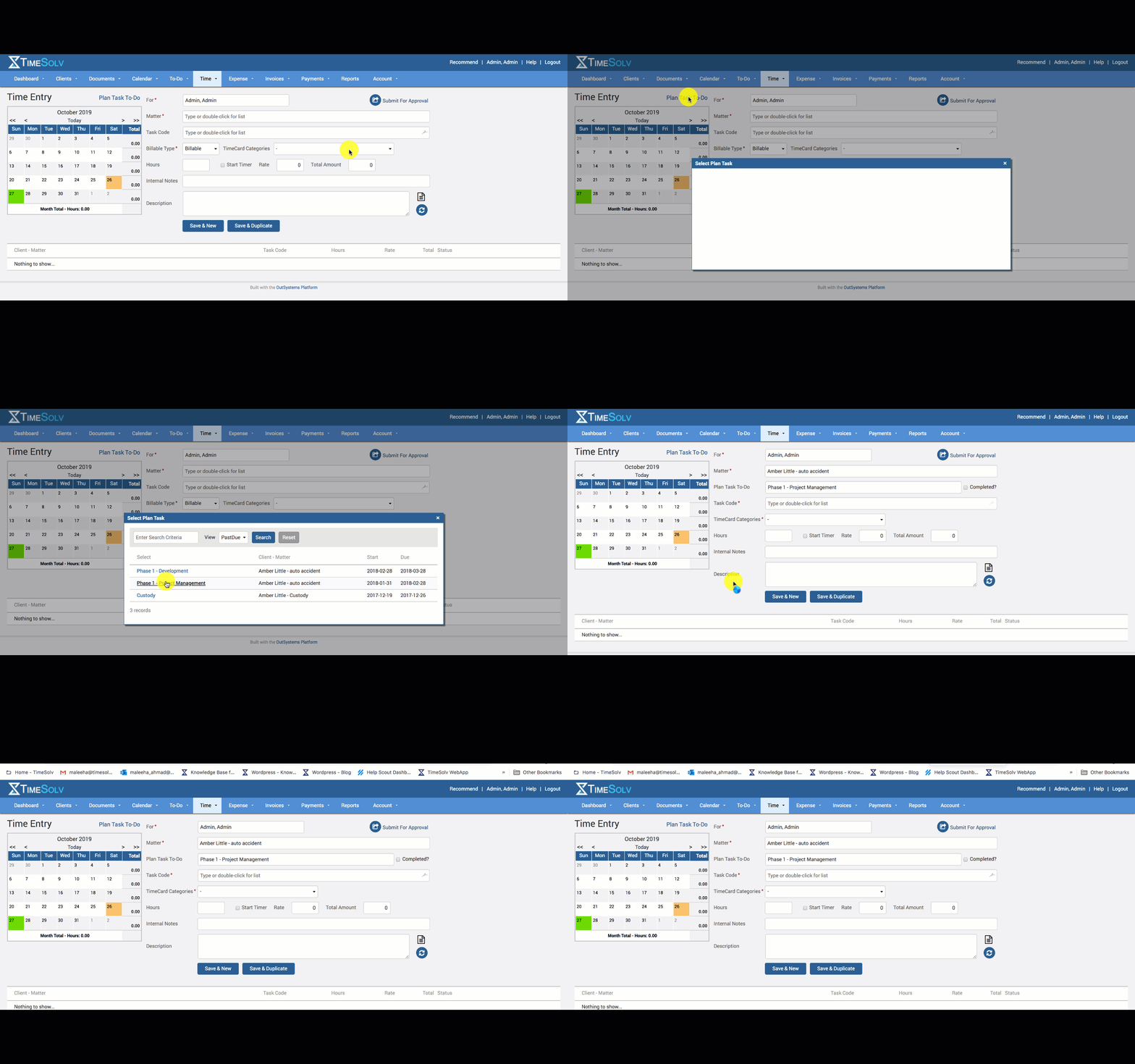
Click on Time>Time Entry.
Click on the Plan Task To-Do link above the calendar.
Search – use the search box and ‘View’ field to narrow down your search for the relevant Task.
Click on the Task name.
All Task details, such as Matter, Task, Task Code, Sub-Task Code, Description, etc will auto-fill in the Time Entry fields by pulling the data from the selected Task.
Add Expense from Expense Entry Screen
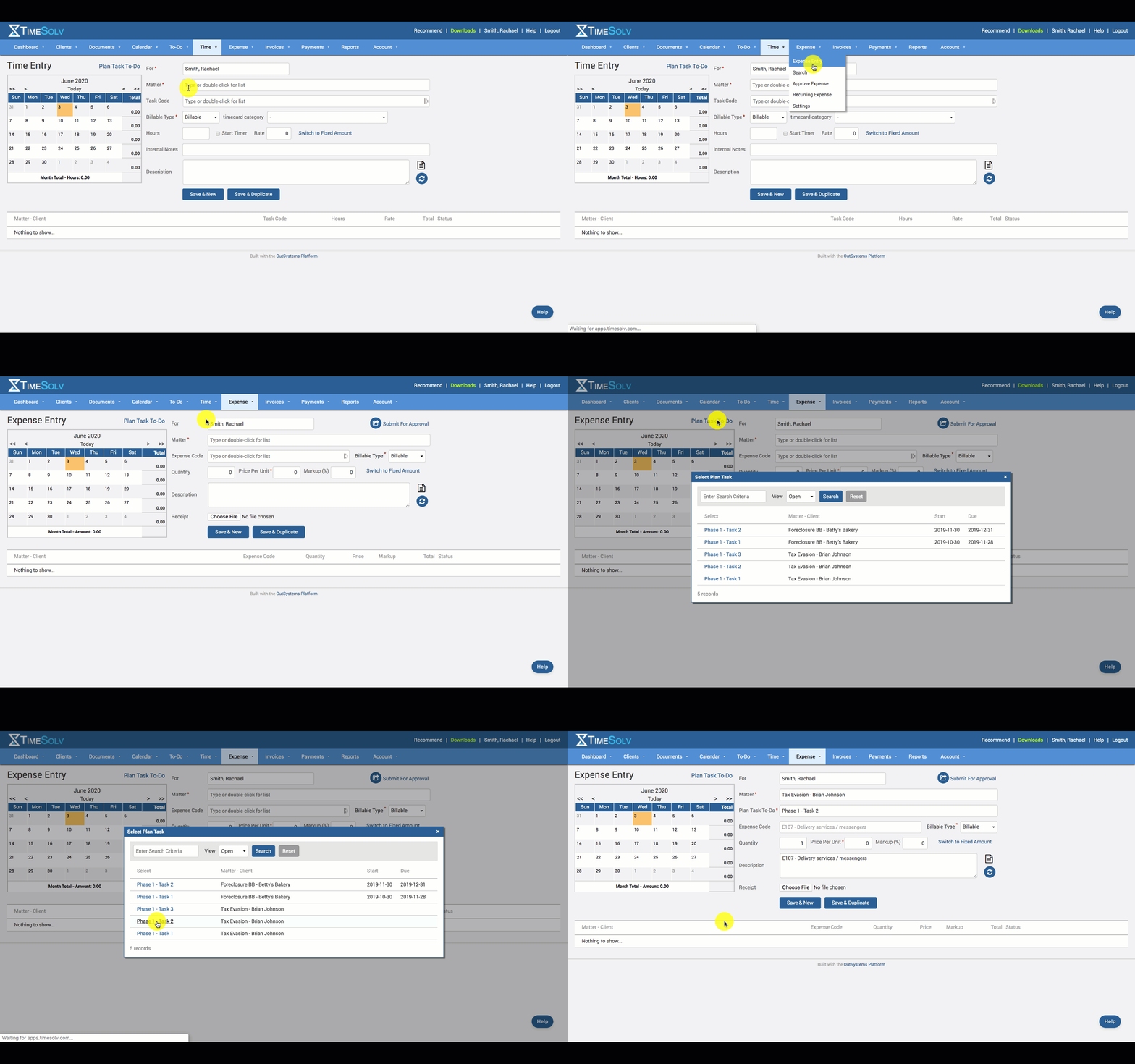
Click on Expense>Expense Entry.
Click on the Plan Task To-Do link above the calendar.
Search – use the search box and ‘View’ field to narrow down your search for the relevant Task.
Click on the Task name.
All Task details, such as Matter, Task, Expense Code, Description, etc will auto-fill in the expense entry fields by pulling the data from the selected Task.
Add Time & Expense from Matter Plan Screen
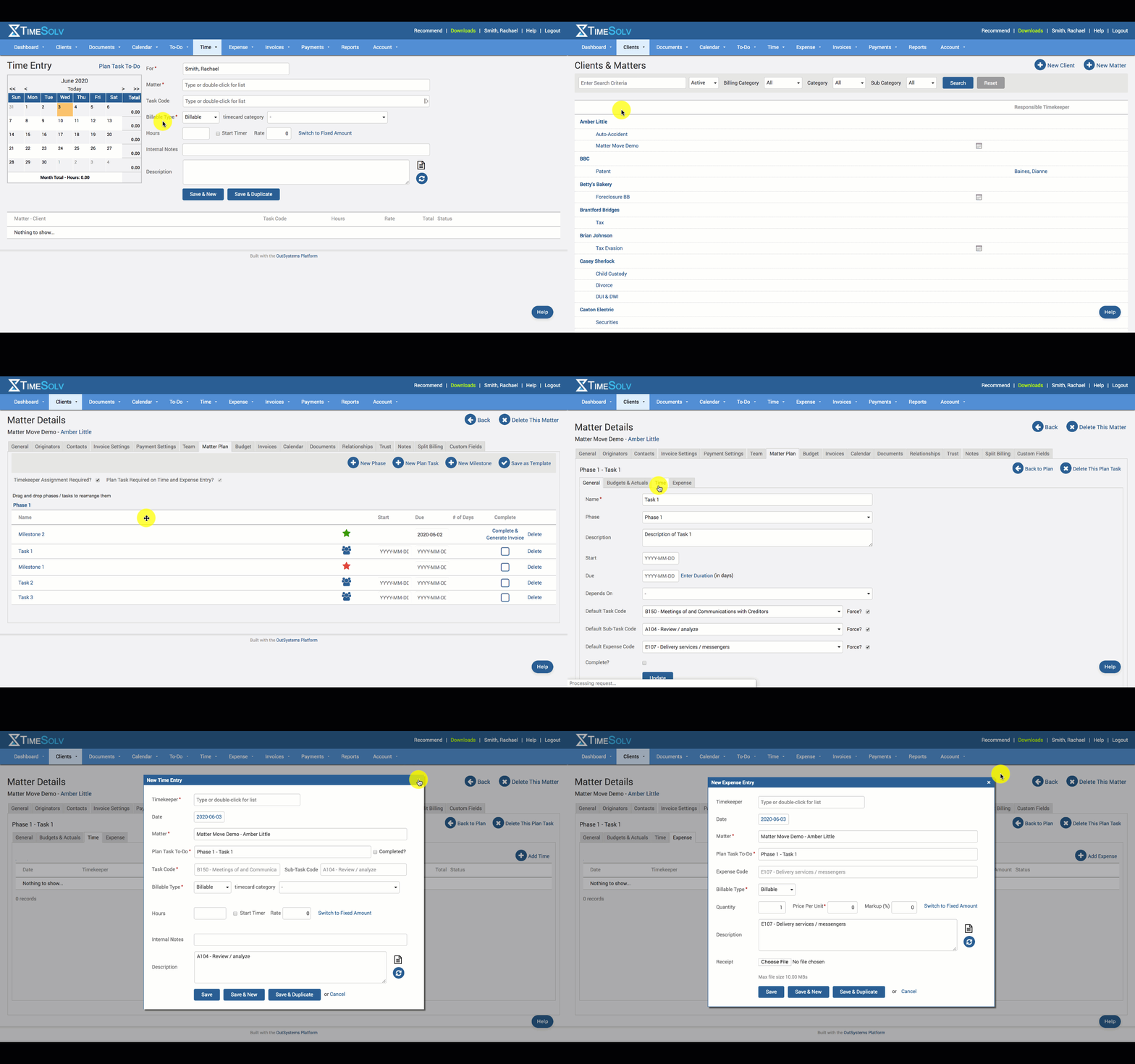
Click on Clients>Clients & Matters>[matter name]>Matter Plan tab.
Open the Task.
Click on Time/Expense tab.
Existing Time/Expense Entries made against this Task will be listed.
Click on Add Time/Expense to create a new entry.